Fixing 100% CPU usage and recurring 503 Service Unavailable errors on Hostinger WordPress usually requires addressing virtual cron loops, unthrottled AI scrapers, and transients bloat rather than immediately upgrading your plan. Hostinger measures CPU utilization and RAM through CloudLinux LVE limits. When your account hits its allocated CPU threshold, the server throttles PHP-FPM workers, queues incoming requests, and throws 503 errors or gateway timeouts, bringing your storefront or blog to a complete halt.
Most site owners assume that CPU spikes indicate legitimate traffic growth. In reality, over 80% of shared hosting resource exhaustion events are caused by three preventable server-side bottlenecks: WordPress’s default virtual wp-cron.php executing on every visitor request, unoptimized database transients accumulating inside wp_options, and aggressive scraping bots bypassing the LiteSpeed cache. This guide outlines the exact diagnostic steps to restore normal CPU baselines (under 15%) without unnecessary hosting upgrades.
Key Takeaways: Resolving Hostinger Resource Limits
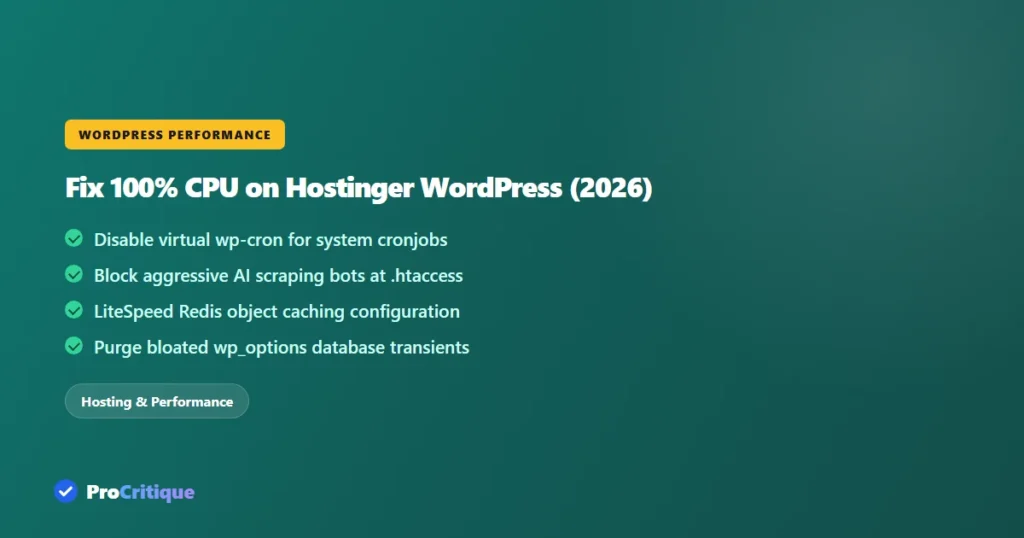
- Disable Virtual wp-cron: By default, WordPress triggers cron tasks upon page visits. High traffic or search crawler bursts cause multiple PHP instances to process scheduled tasks simultaneously. Offload this to a real server-level cronjob.
- Block AI & Scraping Crawlers: Uncached requests from aggressive bots (ClaudeBot, Bytespider, Amazonbot) hammer PHP workers directly, bypassing LiteSpeed page cache.
- Clean wp_options Autoload Bloat: Autoloaded transients from deleted or unoptimized plugins force MySQL to load megabytes of data into RAM on every PHP request.
- Enable LiteSpeed Object Cache (Redis): Reduces database queries from 70+ per page load to fewer than 15, lowering CPU overhead substantially.
The 4 Primary Culprits Behind 100% CPU Spikes
| Root Cause | How It Triggers CPU Spikes | Permanent Resolution |
|---|---|---|
| Virtual wp-cron.php | Executes on incoming web requests; crawler bursts cause overlapping PHP cron executions | Disable in wp-config.php; run system cron via hPanel every 15 minutes |
| Aggressive Web Scrapers | AI bots and scrapers hit dynamic endpoints (search, login, cart), bypassing HTML cache | Block bot user-agents in .htaccess or Cloudflare WAF |
| Autoloaded Options > 1MB | MySQL reads massive serialized options on every single page initialization | Audit and delete expired transients and orphaned plugin data |
| Admin-Ajax / Heartbeat API | Active wp-admin tabs send background POST requests every 15 seconds | Throttle Heartbeat API frequency to 60 seconds using LiteSpeed plugin |
Step 1: Disable Virtual wp-cron and Set Up a System Cron
WordPress’s default virtual cron is responsible for massive resource spikes during traffic spikes or crawler visits. Open your site’s wp-config.php file via Hostinger File Manager or SSH and add the following line directly above “/* That’s all, stop editing! Happy publishing. */”:
define('DISABLE_WP_CRON', true);Next, configure a real Linux cron job in Hostinger hPanel:
- Navigate to hPanel > Advanced > Cron Jobs.
- Under Manage Cron Jobs, select Custom.
- Set the schedule to run every 15 minutes (
*/15 * * * *). - In the command field, execute WP-CLI via PHP binary:
/usr/bin/php /home/uXXXXX/domains/yourdomain.com/public_html/wp-cron.php >/dev/null 2>&1 - Click Save.
Scheduled tasks will now execute systematically every 15 minutes in a single, lightweight background thread rather than hijacking visitor page requests.
Step 2: Block Aggressive Scrapers at the Web Server Level
Aggressive automated bots consume immense PHP and CPU resources by repeatedly requesting uncached URLs. Add the following rewrite rules to your .htaccess file to reject known resource-heavy scrapers before they invoke PHP:
# Block aggressive AI and scraping bots
<IfModule mod_rewrite.c>
RewriteEngine On
RewriteCond %{HTTP_USER_AGENT} (Bytespider|ClaudeBot|Amazonbot|GPTBot|SemrushBot|DotBot) [NC]
RewriteRule .* - [F,L]
</IfModule>
If you utilize Cloudflare in front of Hostinger, create a custom WAF Firewall Rule matching these user agents to drop connections at Cloudflare’s edge before they reach your origin server.
Step 3: Enable Redis Object Caching in LiteSpeed
By default, WordPress queries MySQL for site options, post metadata, and user permissions on every request. On shared hosting, database disk I/O quickly consumes CPU limits.
- In Hostinger hPanel, verify that Object Cache (Redis) is toggled ON under WordPress > Security > Cache.
- In your WordPress dashboard, navigate to LiteSpeed Cache > Cache > Object.
- Toggle Object Cache to ON.
- Method: Redis.
- Host:
127.0.0.1| Port:6379. - Click Save Changes and verify connection status shows green (“Connection Test: Passed”).
Step 4: Clean Bloated Database Transients
Accumulated transients inside the wp_options table force MySQL to load excess data into server RAM. Run the following WP-CLI commands over SSH or use an optimization plugin to clear expired data:
# Clear all expired transients via WP-CLI
wp transient delete --expired

# Check total size of autoloaded data
wp db query "SELECT SUM(LENGTH(option_value))/1024/1024 AS autoload_mb FROM wp_options WHERE autoload = 'yes';"
If autoload_mb exceeds 1.5MB, examine the top autoloaded rows and remove settings left behind by deactivated plugins.
When Should You Actually Upgrade?
If your store runs WooCommerce with over 15 active plugins, processes dozens of dynamic checkouts daily, or requires continuous background API webhooks, shared hosting CPU limits will eventually constrain growth. Review our benchmark comparisons in Hostinger Review, Cloudways Review, and our best web hosting hub to determine when moving to isolated cloud compute (DigitalOcean or Cloudways) becomes necessary.
Frequently Asked Questions
Why does Hostinger show 100% CPU when my Google Analytics shows zero live visitors?
Google Analytics only tracks humans running JavaScript in browsers. Background bots, brute-force login attempts against wp-login.php, and cron execution do not execute Analytics tags but consume full PHP and CPU cycles on your server.
Does enabling LiteSpeed Cache fix high CPU usage?
Yes, for visitors viewing public cached posts and pages. However, LiteSpeed does not cache logged-in WordPress admins, cart/checkout sessions, or REST API endpoints. Fixing wp-cron and blocking bots resolves the uncached CPU load.
What happens if my site stays at 100% CPU for too long?
CloudLinux LVE automatically throttles your account’s processes to prevent server-wide instability. Visitors will experience slow response times (TTFB > 5 seconds) followed by 503 Service Unavailable errors until resource usage subsides.